We did it. We wrapped up the research projects a few weeks ago (envision happy dance), and the papers even had a bibliography attached to each one.
Going through the notetaking and paper writing process with my 4th graders was a challenge. Getting them to format the papers correctly was excruciating. If your child is at an age where he is beginning to type documents for school, there are 6 word processing functions that I find make editing and publishing documents a whole lot easier.
Save As
Save As
Designate one folder where a student saves his documents all the time. My students have a dedicated computer they use in the classroom. There is a folder with their name on the desktop of their assigned computer. Every document a student types is saved into the same folder. Using the Save As feature, I show them how to navigate to their folder.
Parents, set up a folder for your child’s writing assignments ONLY on your home computer. Teach your child how to save in the same place every time.
I also recommend setting up a naming system. In my class, students always save documents as their name followed by key words from the project (TheRoomMom Barbie Research or TheRoomMom Aslan Essay).
Select All
Double Space
Double Space
Double space the entire document at one time. Students like to type a little, then play with formatting, then have mismatched spacing and fonts. After the entire document is finished, change the spacing at one time. I recommend the Select All function to highlight the entire document, then choose the double space (2.0) line spacing.
Tab
Tab Button
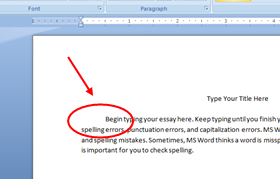
Always use the Tab button to indent when starting a paragraph. When students use the space bar, words are out of alignment and look messy. I dislike messy.
Ctrl+c (copy), Ctrl+x (cut), Ctrl+v (paste)
These are the 3 most valuable shortcut keys in my opinion. Rather than messing with right clicking which inevitably ends up de-highlighting text, I teach my students these 3 shortcuts. I also use these shortcut keys for copying, cutting, and pasting images.
Formatting Button
Formatting Button
This is a teacher’s best friend. If students have words jumping all over the page, turn on the formatting tool. It shows all the background buttons a student has pushed in the document. If a student pressed the space bar a thousand times to move something to the center, it shows little dots. If a student hit enter multiple times, a paragraph symbol (backwards looking P shows up). If a student hit the tab button, an arrow appears. I can fix a lot of funky formatting in a student’s document by turning on the formatting key.
Undo
Undo Typing
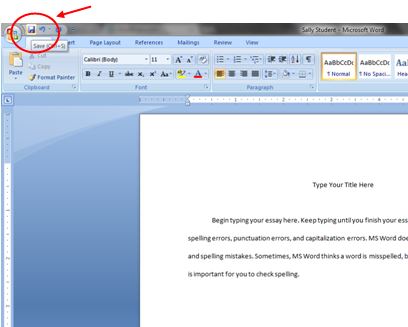
And finally, when all else fails, hit the counterclockwise arrow and undo the most recent typing!
What is your best keyboarding or formatting tip for students?
I am an educator. I am a little crafty; I like to make cupcakes, and I love projects. As my husband will tell you, these interests can quickly grow out of control when working on teacher gifts and class activities.